;)
User Profile Help
Add Profile Picture
1. From Website, in top left corner, click Plus Sign (+)
2. Choose File
3. Enter Caption if you want - displayed when user clicks on your picture.
4. Click Submit.
Profile Picture Tools
Plus Sign (  ) - adds another picture. You can then swap between them when you want.
Checkmark (  ) - TBD
Crop (  ) - Resize the photo within the frame but then you Save it and add it back.
Delete (  ) - Click on the photo you want to delete, then click this icon to delete the current photo.
Flag (  ) - Use this if someone posts an obscene or graphic image. The platform developers will be notified and will work with the user to add an appropriate profile image.
Update Your Information
There are two locations to provide information about yourself.
 The first is an Update Information form located in the blue Configuration Button in the upper right corner.
Fill in as many of the address, email and social media fields as you would like. Information and social media icons  will be displayed in the top right of the blue profile banner.
The second is in the blue Edit My Information button:
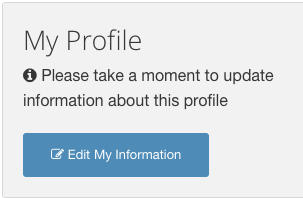 1. Click the Edit My Information button.
2. Answer the questions about your involvement with the American Cancer Society.
3. Click Save
Sign in to add your comment.